Spaces UI
ADDING TO GAME SCENE
Adding Spaces UI to your game scene is straightforward. You need to attach two Spaces UI prefabs to your Scene Hierarchy.
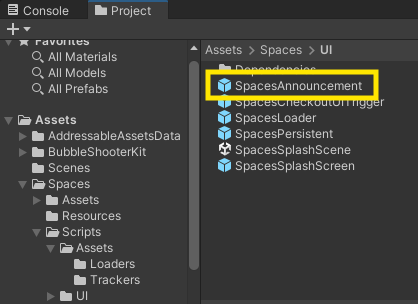
SpacesAnnouncement
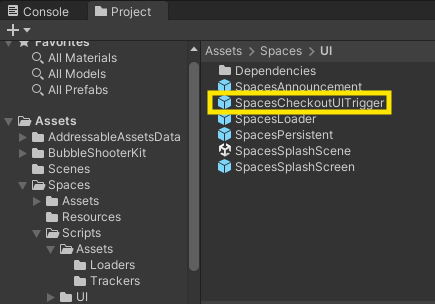
SpacesCheckoutUITrigger
You will find these UI prefabs under .\Spaces\UI\
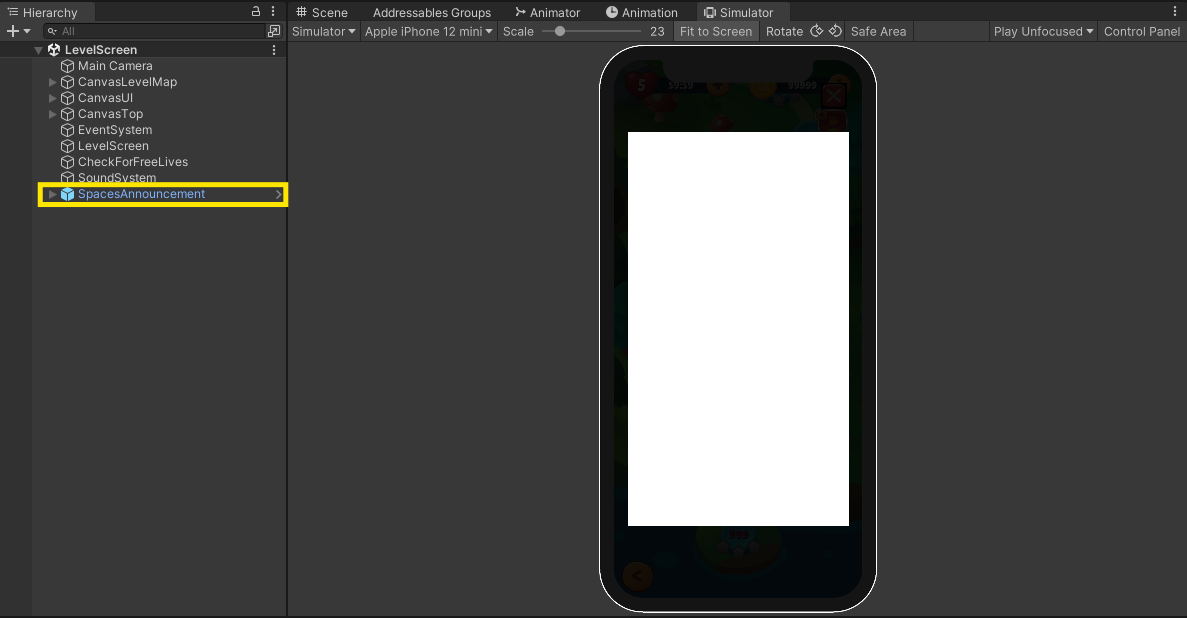
SpacesAnnouncement- shows a popup announcement (once) that a new branded experience is running in the game now.
Drag and Attach SpacesAnnouncement.prefab in the appropriate game scene hierarchy.
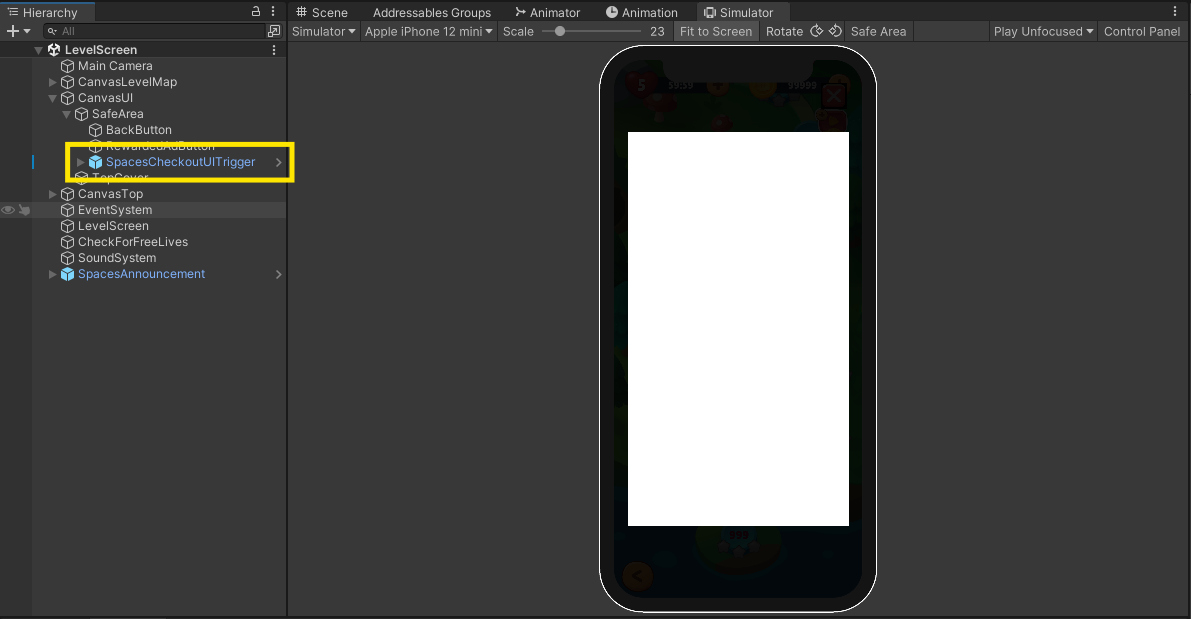
SpacesCheckoutUITrigger- Is a UI Button which will be active, only when there is an active brand campaign. Users on clicking will see theSpacesCheckoutUI.
Drag and Attach SpacesCheckoutUITrigger.prefab in the appropriate location in your UI and game. This is most likely somewhere in your game home or menu page.4
PASS INPUTS BASED ON YOUR GAME
Head over to SpacesPostCampaignPanel under SpacesPersistent\SpacesCheckout.prefab.
In SpacesPostCampaignPanelUI.cs, after spacesBackgroundPanel argument, you would need pass two arguments one after the other.
- A function that will be triggered after a user fills the Brand lift survey for rewarding them with in-game rewards like extras lives, free coins or gems etc in your game.
spacesEngine.EnablePostCampaignUI(...,spacesBackgroundPanel,()=>GemReward(10),...);
- (Optional) Pass a short text describing the in-game reward
spacesEngine.EnablePostCampaignUI(...,()=>GemReward(10),"EARN 10 GEMS",...);
In case you don't want to offer any such functions, just pass an empty function and an empty string "" respectively.
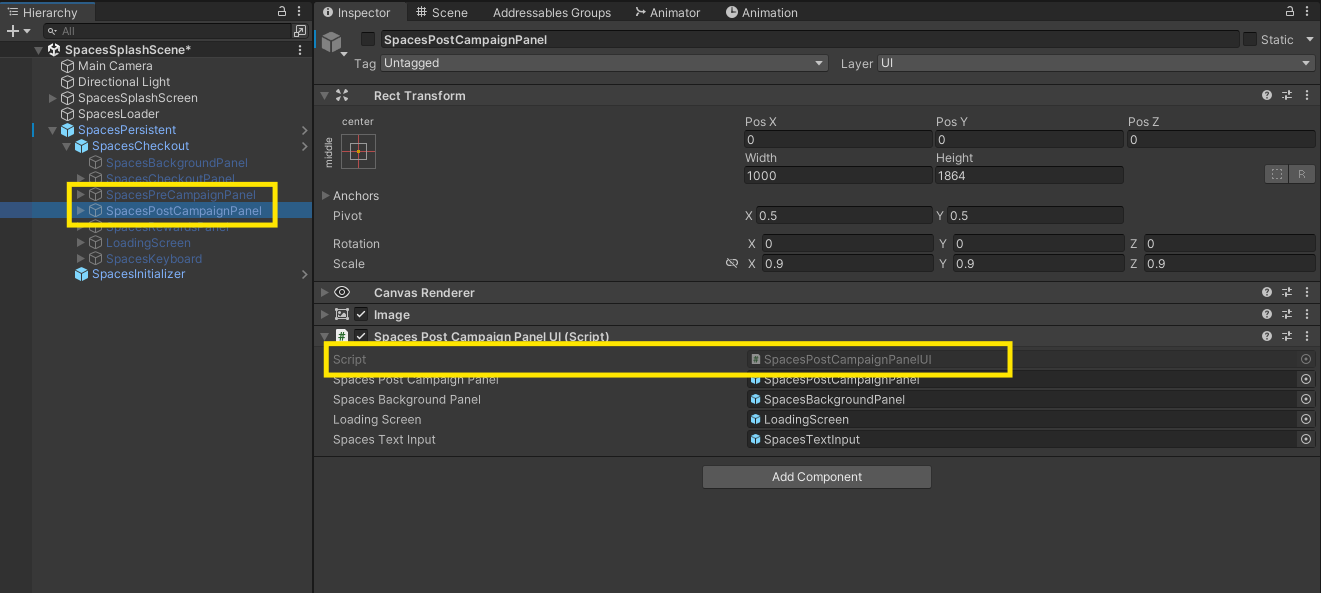
Similarly do the same in SpacesPreCampaignPanel under SpacesPersistent\SpacesCheckout.prefab