Tracker
Standard Drag-Drop
Each asset can be either a Prefab or a GameObject that displays or renders the asset on the screen. The visibility of the asset depends on whether its GameObject is active; if it's active, the asset is displayed; if not, it becomes invisible.
- Attach the Tracker Script:
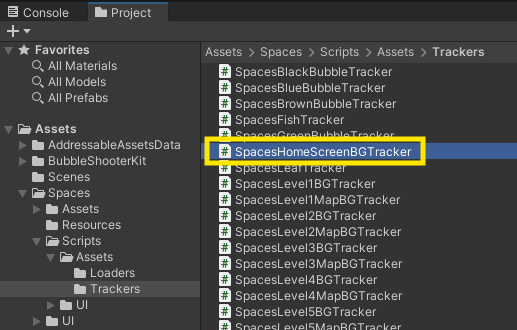
- Drag the appropriate Tracker script from the following directory
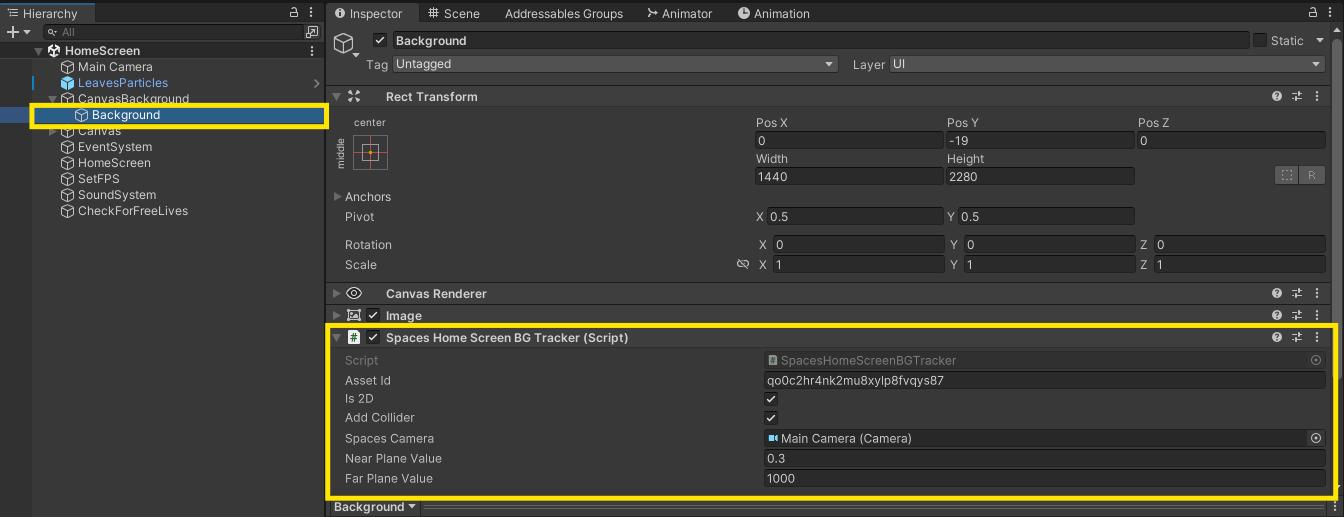
./Spaces/Scripts/Assets/Trackers - Attach it to the relevant GameObject of the Asset. The rule of thumb is to attach to the gameobject that consists of a component that renders the asset or with colliders present i.e Mesh Renderer, Skinned Mesh Renderer, Sprite Renderer, Image, any type of Collider etc.
- Drag the appropriate Tracker script from the following directory
-
Set Up for 2D Assets:
- If your asset is a 2D element (such as a UI component or part of a 2D game), make sure to set
is2Dtotrue. - If your asset is not rendered by any camera and is shown in the screen, on the Overlay spaces, make sure to set
isOverlaytotrue.
- If your asset is a 2D element (such as a UI component or part of a 2D game), make sure to set
-
Collider Settings:
- If the GameObject you are attaching the script to does not have any Colliders present, set
addCollidertotrue. - In most cases this won't cause an issue, as sapces adds collider within the asset without being exposed as 'bounding box kind of a collider' covering the asset. In some rare cases, if adding a collider affects gameplay, you can turn it
off.
- If the GameObject you are attaching the script to does not have any Colliders present, set
-
Pass the Camera
- Pass the Camera Object which is responsible for showing the asset in the scene. If passing as
Camera.main, make sure your Camera is Tagged properly.
- Pass the Camera Object which is responsible for showing the asset in the scene. If passing as
-
Set Near & Far Plane Values
- Pass the Near & Far Clipping Plane Values that you use in your Camera.
Alternative Method to Pass Parameters
- You can also pass the paramters in the
Start()function of the Tracker Script.
public class SpacesCoinTracker : MonoBehaviour
{
    // Start is called before the first frame update
    void Start()
    {
        assetId = SpacesAssets.GetAssetId("Coin");
        spacesCamera = Camera.main;
        is2D = false;
        addCollider = true;
        isOverlay = false;
        nearPlaneValue = 0.5f;
        farPlaneValue = 50f;
        spacesEngine = new SpacesEngine(SpacesController.GetAPIKey(),SpacesController.env);
        spacesEngine.InitializeAsset(gameObject,is2D,addCollider);
    }
}
Your Tracker script will look similar to this
using UnityEngine;
using Spaces.Unity.WebGl.Sdk.V2;

public class SpacesCoinTracker : MonoBehaviour
{
    public string assetId;
    private SpacesEngine spacesEngine;
    public bool is2D;
    public bool isOverlay;
    public bool addCollider;
    public Camera spacesCamera;
    public float nearPlaneValue;
    public float farPlaneValue;


    // Start is called before the first frame update
    void Start()
    {
        assetId = SpacesAssets.GetAssetId("Coin");
        spacesEngine = new SpacesEngine(SpacesController.GetAPIKey(),SpacesController.env);
        spacesEngine.InitializeAsset(gameObject,is2D,addCollider);
    }

    // Update is called once per frame
    void Update()
    {
        if(spacesCamera!=null && assetId!=null && spacesEngine!=null){
            spacesEngine.AssetUpdate(gameObject,spacesCamera,assetId,nearPlaneValue,farPlaneValue,is2D,isOverlay);
        }
    }

    void OnDisable()
    {
        if(assetId!=null && spacesEngine!=null){
            spacesEngine.AssetDisabled(assetId);
        }
    }

    void OnApplicationFocus(bool focus)
    {
        if (focus == false && assetId!=null && spacesEngine!=null)
        {
            spacesEngine.AssetDisabled(assetId);
        }
    }

    void OnDestroy()
    {
        if (assetId!=null && spacesEngine!=null)
        {
            spacesEngine.AssetDestroyed(assetId);
        }
    }

}
Let me explain what each endpoint does for a better understanding
spacesEngine.InitializeAsset(gameObject,is2D,addCollider);
- Purpose: Initializes the SpacesAsset.
- Usage: This method is called only once during the lifecycle of the GameObject to which the Tracker Script is attached.
spacesEngine.AssetUpdate(gameObject,spacesCamera,assetId,nearPlaneValue,farPlaneValue,is2D,isOverlay);
- Purpose: Tracks the asset while the GameObject is active.
- Usage: This method is called in every frame when the asset is visible in the game.
Note: Adjust the nearPlaneValue and farPlaneValue parameters based on your game's camera settings. These represent the near and far clipping plane values. It's best practice to set optimal clipping planes so that the asset is considered visible only when it is close enough and large enough for users to see.
spacesEngine.AssetDisabled(assetId);
- Purpose: Temporarily disables asset tracking.
- Usage: This method is called whenever the GameObject or asset becomes invisible or inactive in the game.
Addition by Code & Modifications
In some scenarios, you might have to do somes changes to the script and assign values in runtime etc..
-
You need to ensure that the respective asset tracker script, is attached to the asset Gameobject. You can either do it via editor or in runtime depending on how you handle it.
-
If you are loading assets in runtime dynamically, ensure you set the
assetIdin the script. You can fetch assetId by passing the name in this functionSpacesAssets.GetAssetId("your-asset-name")in runtime.
Example
Use the snippet below to attach the Spaces Tracker to a gameObject by code in runtime. You can set the assetId by accessing the GetAssetId() function in the asset gameobject and then by running tracker.assetId = SpacesAssets.GetAssetId("Coin").
SpacesEngine assetSpacesEngine = new SpacesEngine(SpacesController.GetAPIKey(),SpacesController.env);
bool assetIs2D= true;  //you can set appropriate values
bool assetAddCollider = true; //you can set appropriate values
assetSpacesEngine.InitializeAsset(gameObject,assetIs2D,assetAddCollider);
SpacesTracker tracker = gameObject.AddComponent<SpacesTracker>();
tracker.spacesEngine = assetSpacesEngine;
tracker.assetId = SpacesAssets.GetAssetId("Coin"); //you need to assign the appropriate assetId to the script
tracker.is2D = assetIs2D;
tracker.isOverlay = true; //you can set appropriate values
tracker.addCollider = assetAddCollider;
tracker.spacesCamera = Camera.main; //or anyother appropriate Camera
tracker.nearPlaneValue = 0.3f; //you can set appropriate values Camera
tracker.farPlaneValue = 1000f; //you can set appropriate values matching the Camera
The Snippet uses the base SpacesTracker.cs code, you can make multiple copies of the this code, edit and use it, if you are adding any custom visibility logic as mentioned in the next point. Just makesure you can change the class name and file name of your copies. You can find SpacesTracker.cs in ./Spaces/Scripts/Assets/Trackers
- If you control the visibility of an asset without deactivating or destroying its associated GameObject. Make sure you add that condition in the
Update()of the Tracker script. Ensure thatspacesEngine.AssetUpdate(gameObject,spacesCamera,assetId,nearPlaneValue,farPlaneValue,is2D);is called on every frame only when the Gameobject is visible/active/rendered.
Example Lets say you scale the asset up to show it and scale it down to zero to hide it, while keeping the GameObject active. In that case do something like the following, for Spaces Engine to account for it.
bool CheckScaled(RectTransform rectTransform){
    if (rectTransform != null)
    {
        // Check the localScale in the X and Y axes
        Vector3 scale = rectTransform.localScale;

        if (scale.x > 0f && scale.y > 0f && scale.z>0f)
        {
            return true;
        }
        else
        {
            return false;
        }
    }
    else
    {
        return false;
    }
}

void Update(){
    if(spacesCamera!=null && assetId!=null && spacesEngine!=null && CheckScaled(GetComponent<Image>().GetComponent<RectTransform>())) //you can add any condition based on your requirements.
    {
        spacesEngine.AssetUpdate(gameObject,spacesCamera,assetId,nearPlaneValue,farPlaneValue,is2D)
    }
}