Spaces Life Cycle
The Spaces Ad-Engine lifecycle states that must align with your game's lifecycle, Spaces takes care of all the states by itself, we will just need to take care of the Game Load, Game Update/Game Over state.
LOAD
Let's start with the very first scene of your game, the Loading Scene or Splash Screen.
If Your Game Already Has a Loading Scene
-
Drag and Drop
SpacesSplashScreenprefab at the bottom of the hierarchy in your Loading Scene. You can find it at\Spaces\UI. You can modfy the loading image with the one appropriate for your game inside theSpacesSplashScreenprefab atSpacesSplashScreen\LoadingScreen\Image. -
Drag and Drop
SpacesLoaderprefab at the bottom of the hierarchy in your Loading Scene. You can find it at\Spaces\UI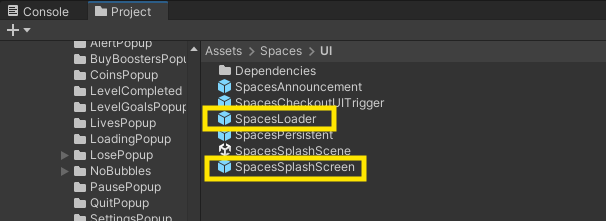
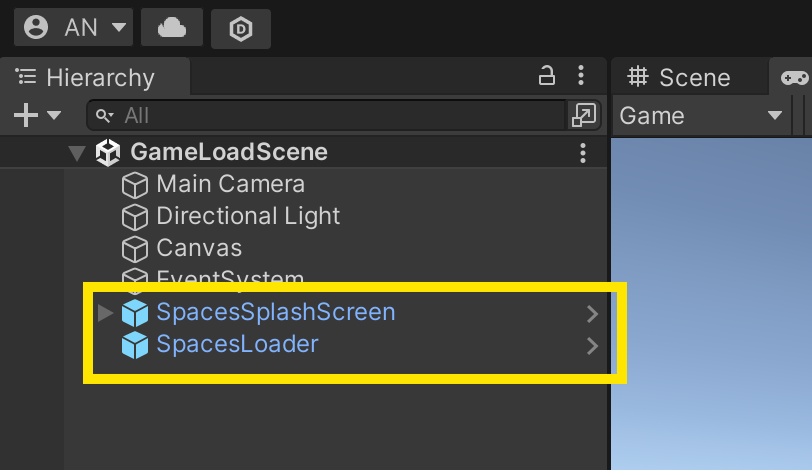
-
Drag and Drop
SpacesPersistentprefab at the bottom of the hierarchy in your Loading Scene. You can find it at\Spaces\UI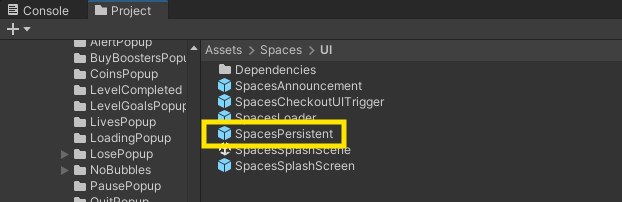
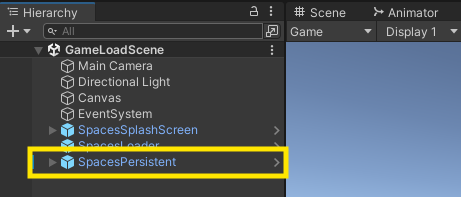
-
Call the
SpacesController.Load()function in your game-loading logic. You need to place it at the very beginning of your game, before your game loading logic starts.Note that this should specifically be before any addressables Loading you do by default if any
-
Ensure that the game starts only after the execution of the
SpacesController.Load()function. Convert the parent function where you includeSpacesController.Load()into anasync Taskfunction.Example
using System.Threading.Tasks; // Add this library to support async functions

public async Task YourLoadingFunction(){
    // ---Place this code before at the beginnig before any game logic---
    await SpacesController.Load();
    // --- Rest of you code-------------------
} -
If in case, you cannot convert the parent function into
async Task(eg: your parent is a Coroutine). In that case just place the above code into a separateasyncfunction and call the new function in the place where you trigger or load the next game scene.Example
using System.Threading.Tasks; // Add this library to support async functions

//Create a function like below
public async Task TriggerSpacesLoad(){
    await SpacesController.Load();
    // --- Rest of your game essential game loading code-------------------
}

public void YourLoadingFunction(){
    //Instead of Triggering the next Scene here, call the function that you created.
    TriggerSpacesLoad();
} -
await SpacesController.Load();will also trigger a Loading Screen fromSpacesSplashScreen. If you want to disable it, You can just makeSpacesController.SpacesSplashLoadingScreenOn();andSpacesController.SpacesSplashLoadingScreenOff();as empty functions by commenting its function logic inSpacesController.cslocated in\Spaces\Scripts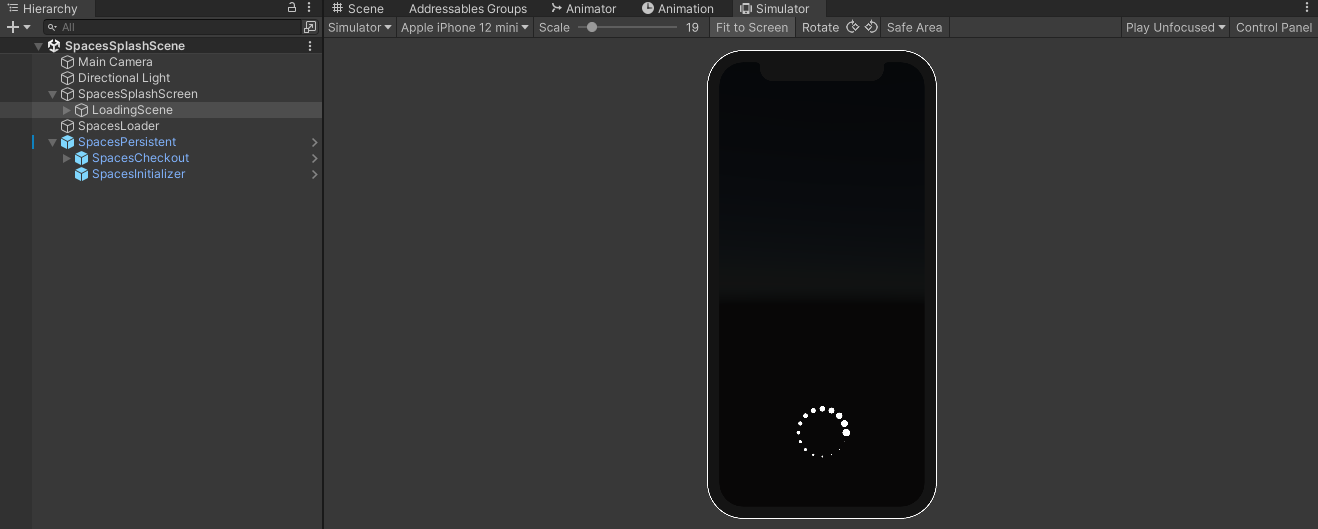
In SpacesController.cs
public class SpacesController
{

    // --- Rest of code-------------------

    public static void SpacesSplashLoadingScreenOn(){
        // Debug.Log("In SpacesLoadingScreenOn");
        // GameObject.Find("SpacesSplashScreen").transform.Find("LoadingScreen").gameObject.SetActive(true);
        // Debug.Log("After SpacesLoadingScreenOn");
    }

    public static void SpacesSplashLoadingScreenOff(){
        // Debug.Log("In SpacesLoadingScreenOff");
        // GameObject.Find("SpacesSplashScreen").transform.Find("LoadingScreen").gameObject.SetActive(false);
        // Debug.Log("After SpacesLoadingScreenOff");
    }

    // --- Rest of code-------------------
}
Trivia: Throughout the integration you will be interacting with
SpacesController.csin\Spaces\Scripts -
IN ANDROID: Run
SpacesController.SetUserParams();before you callawait SpacesController.Load();and pass the appropriate user parameters and keywords. This will help us in A/B testing and targetting campaigns for users. If you do not want to pass certain parameters, just pass the default value as present inSpacesLoader.cs.
SpacesController.SetUserParams(string email, string name, double locationLat, double locationLong, int age, string gender, string keyword1, string keyword2, string keyword3, string keyword4, string keyword5);.
    SpacesController.SetUserParams("random@email.xyz","random-name",0.0f,0.0f,25,"MALE","PROD-GROUP","A-GROUP","NONE","NONE","NONE"); //example function call
    await SpacesController.Load();
If Your Game Does Not Have a Loading Scene
A basic loading scene is provided. Add it to your build settings hierarchy above your game scene. You can find it at ./Assets/Spaces/UI/SpacesSplashScene.Unity.
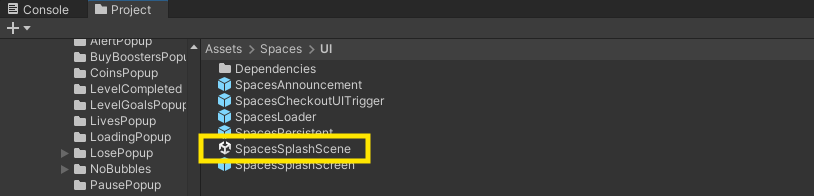
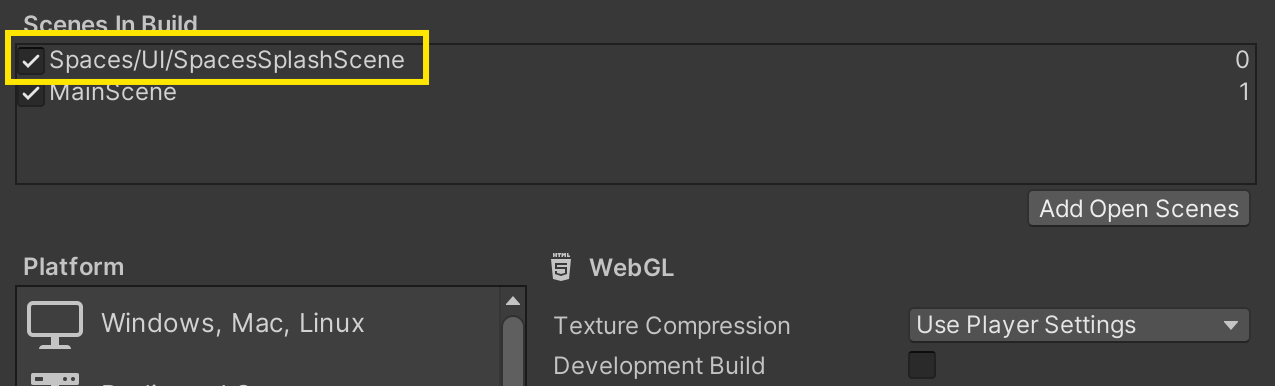
Feel free to modify the loading screen UI as needed. By default, the scene includes a background image with a loading icon.
-
Trigger the scene you want to load at the end of the
Initialize()function inSpacesLoaderInSplashScene.cs. You can find this script in./Assets/Spaces/Scripts/.private async Task Initialize(double lat, double lon, string deviceId, string defaultDeviceId)
{
// ---Rest of the code---
await spacesEngine.Load();
await SpacesController.StartGameSession();
SceneManager.LoadScene("Main"); // Trigger your game scene here
}
UPDATE
Typically, your game will show a "Game Over" screen at some point in the game cycle. Just before this screen appears, you must trigger SpacesController.UpdateGameSession(); This will display the Spaces UI if there is an active campaign.
-
Call the
SpacesController.UpdateGameSession();function in the appropriate location, just before the "Game Over" screen is displayed. -
Convert the parent function where you include
SpacesController.UpdateGameSession();into anasync Taskfunction. Converting parent into async is suggested as a best practise but is not mandatory here.using System.Threading.Tasks; // Add this library to support async functions
public async Task YourFunction() //Typically your Game Over or Show Game Popup Function
{
// ---Rest of your code---
await SpacesController.UpdateGameSession();
// ---Rest of your code---
}
During an active campaign, the Spaces UI will be displayed once await SpacesController.UpdateGameSession(); is triggered. This UI allows brands to distribute rewards for in-game task completion, showcase call-to-action buttons, display a brand banner or video, and more. This UI is customized to align with your game's UI/UX.
Next...
We will link the Spaces Engine with your Game Assets.