Loader
Standard Drag-Drop
Each asset may consist of multiple GameObjects, each responsible for rendering different components of the asset.
Typically, a GameObject will render a specific set of asset components, such as: like Meshes, Materials, Sprites etc.
- Locate the Loader Scripts:
- You can find it in the following directory:
./Spaces/Scripts/Assets/Loaders.
- You can find it in the following directory:
- Attach the Loader Scripts:
- Simply drag and drop the relevant loader scripts onto their corresponding GameObjects. You will have to modify the script based on where you will be assigning the asset.
- Modify the Scripts as Needed:
- Depending on how you plan to assign the asset, you may need to modify the scripts to fit your specific requirements.
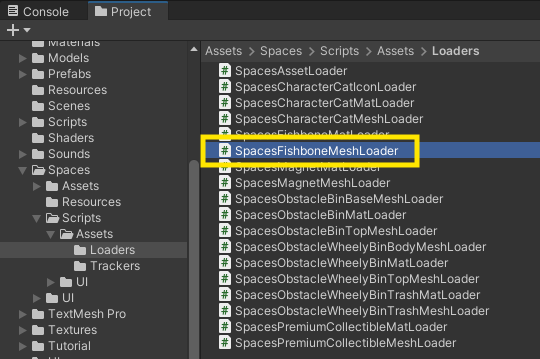
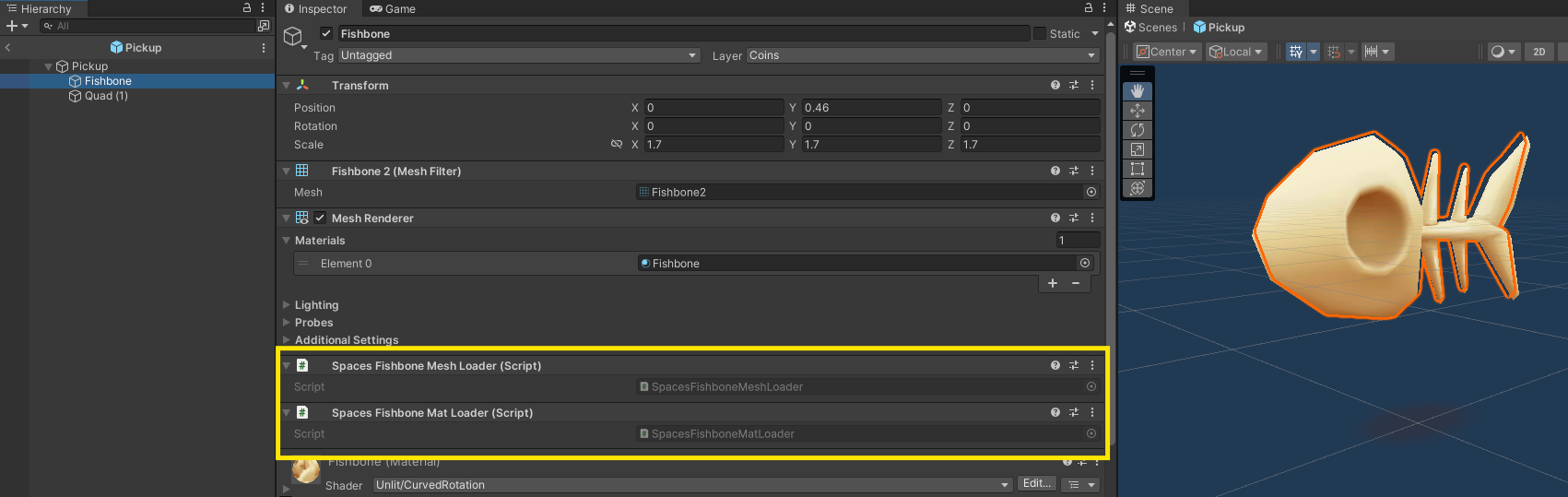
Your Loader script will look similar to this. You can access the asset by using the line (<AssetType>)asset;
public class SpacesBridgeLoader : MonoBehaviour
{
    SpacesEngine spacesEngine;
    void Awake(){
        spacesEngine = new SpacesEngine(SpacesController.GetAPIKey(),SpacesController.env);

        if(spacesEngine.IsCampaignActive()){
            var (asset, isValid) = spacesEngine.FetchAsset("SpacesBridgeMesh");
            //Fetch your appropriate component
            // e.g. MeshFilter meshFilter = GetComponent<MeshFilter>();
            if (isValid1)
            {
                //(Mesh)asset; //Use this to assign the asset
                //e.g. meshFilter.mesh = (Mesh)asset
            }
            else
            {
                Debug.LogError("SpacesBridgeMesh: MeshFilter component not found or asset not loaded");
            }
        }
    }
}
NOTE - In certain cases Sprites are grouped together as a Sprite Atlas and accessed from it, even though none of your assets would have Sprite Atlas as your components. This is done to achieve quick loading times in certain cases
Let me explain what the Loader Script does for a better understanding
The most critical logic is the following:
if(spacesEngine.IsCampaignActive()){
    var (asset, isValid) = spacesEngine.FetchAsset("SpacesBridgeMesh");
    MeshFilter meshFilter = GetComponent<MeshFilter>();
    if(isValid) // && other additional custom conditions as per your requirement
    {
        meshFilter.mesh = (Mesh)asset;
    }
}
-
spacesEngine.FetchAsset("asset-component-name")retrieves the associated asset component and returns a boolean indicating whether the asset was successfully fetched. -
if
isValidis true, you should assign the asset to the corresponding component in the GameObject. -
We ensure that this logic is executed only when there is an active Spaces Campaign by wrapping it in
if(spacesEngine.IsCampaignActive()). -
This entire process runs only once, either in the
Awake() or Start()before the first frame is rendered. -
Before assigning the asset to any of your asset components, you must cast it to the appropriate component type. For example:
meshFilter.mesh = (Mesh)asset;.
Some Examples For Asset Assignment
if(spacesEngine.IsCampaignActive()){
    var (asset, isValid) = spacesEngine.FetchAsset("SpacesCoinMesh");
    MeshFilter component = GetComponent<MeshFilter>();
    if(isValid && component!=null)
    {
        component.mesh = (Mesh)asset;
    }
}
if(spacesEngine.IsCampaignActive()){
    var (asset, isValid) = spacesEngine.FetchAsset("SpacesCharacterMesh");
    SkinnedMeshRenderer component = GetComponent<SkinnedMeshRenderer>();
    if(isValid && component!=null)
    {
        component.sharedMesh = (Mesh)asset;
    }
}
if(spacesEngine.IsCampaignActive()){
    var (asset, isValid) = spacesEngine.FetchAsset("SpacesCharacterMat");
    MeshRenderer component = GetComponent<MeshRenderer>();
    if(isValid && component!=null)
    {
        component.material = (Material)asset;
    }
}
if(spacesEngine.IsCampaignActive()){
    var (asset, isValid) = spacesEngine.FetchAsset("SpacesCoinMatLight");
    MeshRenderer component = GetComponent<MeshRenderer>();
    if(isValid && component!=null)
    {
        Material[] materials = component.materials;
        materials[0] = (Material)asset;
        component.materials = materials;
    }
}
if(spacesEngine.IsCampaignActive()){
    var (asset, isValid) = spacesEngine.FetchAsset("SpacesCoinMatDark");
    MeshRenderer component = GetComponent<MeshRenderer>();
    if(isValid && component!=null)
    {
        Material[] materials = component.materials;
        materials[1] = (Material)asset;
        component.materials = materials;
    }
}
if(spacesEngine.IsCampaignActive()){
    var (asset, isValid) = spacesEngine.FetchAsset("SpacesCoinMatMain");
    SpriteRenderer component = GetComponent<SpriteRenderer>();
    if(isValid && component!=null)
    {
        component.sprite = (Sprite)asset;
    }
}
Addition by Code & Modifications
In certain cases, you might programmatically assign/load the asset componets. In that case you will have to fetch the asset and then assign it wherever you want programmatically.
Make sure the following:
- You typecast the component to its type and assign the asset based on the component.
- Entire spaces asset loading logic, is enclosed within
if(spacesEngine.IsCampaignActive())
NOTE - Ensure that Spaces asset is assigned before the asset Gameobject is set active
Template
using Spaces.Unity.WebGl.Sdk.V2; //use this library to get access to SpacesEngine class

//--- at the appropriate location in your code
SpacesEngine spacesEngine = new SpacesEngine(SpacesController.GetAPIKey(),SpacesController.env);
if(spacesEngine.IsCampaignActive()){
    var (asset, isValid) = spacesEngine.FetchAsset("asset-component-name");
    if(isValid){
        //asign it with (Mesh)asset or (Material)asset based on your Asset type
    }
    else{
        //your default assignment
    }
}
else{
    //your default assignment
}
Trivia: You can find all the Components (asset-component-name) in \Spaces\Components.txt